Archive

Archive for May, 2009

Cool Xcelsius Dashboards and Where to Find Them

May 29th, 2009 1 comment

They’ve Got Style

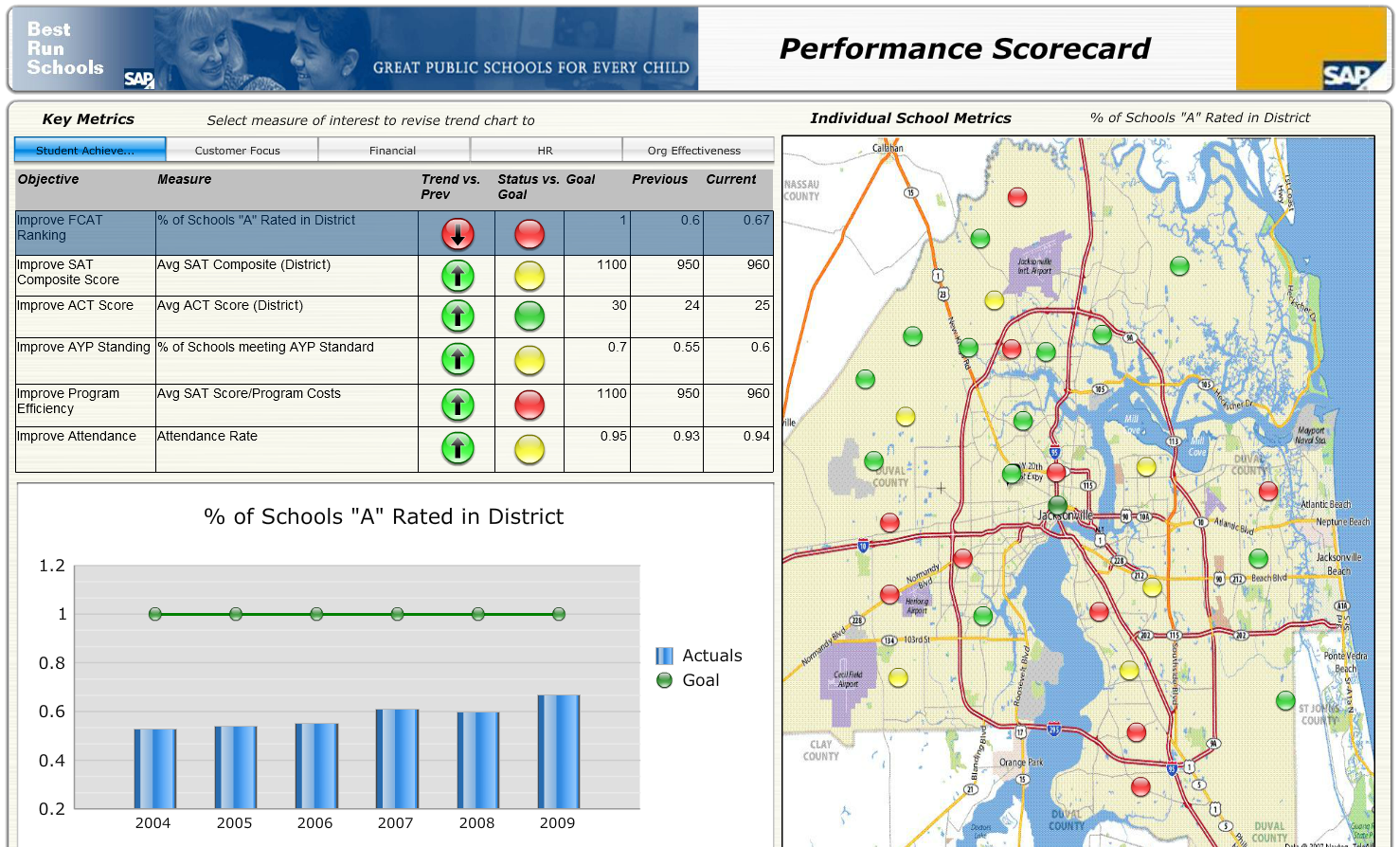
I continue to be amazed by the dashboards being developed by our customers and partners to meet on going business needs.  Across every industry and every organization, regardless of size, companies are able to consolidate information into a single, interactive dashboard view.  Customers constantly ask me for examples of what other organizations have done, so I decided it was time to assemble a list of the best Xcelsius websites with samples.

Some of my Favorites

  1. My absolute favorite site is Inverra.  They are constantly updating their site with unique KPI centric examples.
    http://www.inverra.com/Dashboards/demos.htm
  2. Analysis Factory.  Very professional graphics.  Their supply chain example is tops.
    http://www.analysisfactory.com/gallery.html
  3. MyXcelsius Showcase.
    http://myxcelsius.com/showcase/
  4. Everything Xcelsius
    http://everythingxcelsius.com/showcase
  5. SAP SDN Xcelsius Samples. These samples are either from SAP or have been uploaded from customers.
    https://www.sdn.sap.com/irj/boc/xcelsius-samples

Dashboarding Ideas

Need to keep you finger on the pulse of the dashboarding scene?  Looking for great ideas around dashboards in general?  There is one website above all others that has great information about creating dashboards with both Xcelsius and non-Xcelsius based technologies.  The website is Dashboard Spy and I highly recommend you give it a look.
http://dashboardspy.com/

They also have a great list of dashboard screenshots that’s worth a look:
http://dashboardspy.com/screenshots.html

«Good BI»

Categories: SAP BusinessObjects Tags:

Business Intelligence Business Requirements and the BI Portfolio

May 25th, 2009 No comments

Memorial Day was a great day to reflect on the sacrifices of so many for the freedoms and liberties will all enjoy. Thank you veterans!!

After attending a local Memorial Day Rememberance and Celebration, I spent some time cleaning my office and I came across an excellent article which I wanted to pass along.  So often when I talk to organizations about Business Intelligence, I ask them about their business requirements so that I can understand their current business pain.  All to often what follows is feature function laundry list of capabilities they are sure they can’t live without.  Time after time, the BI requirements given to software vendors are not tied to a specific business problem. This is a recipe for disaster.

The following article is an article from DM Review entitled, Business Requirements for BI and the BI Portfolio: How to Get it Right:
http://www.b-eye-network.com/print/6887

This article does a great job at pointing out the weaknesses of generic BI requirements and why functional requirements are not enough.  If you have BI requirements and are evaluating BI tools, I highly recommend you take a few minutes to read this article.

«Good BI»

Categories: SAP BusinessObjects Tags:

Some controls on this presentation can't be activated – Xcelsius! Help!

May 20th, 2009 2 comments

At SAP BusinessObjects I work in the role of a Solution Advisor and I have a collection of Xcelsius dashboard examples.  I also receive new Xcelsius models from my colleagues from time to time.  Several months ago I ran across a strange problem with my Xcelsius powerpoints.  When I moved documents from one machine to another I began having problems openning these powerpoints and viewing my Xcelsius models.

Can’t be Activated in Aggravating

When opening powerpoint, I would see the following Windows error:

Some Controls on the Presentation cant be activated

Some Controls on the Presentation can't be activated. They might not be registered on this computer.

I was left wondering if this was a problem with the new Powerpoint 2007, so an incompatibility between Xcelsius 4.5 and 2008.  After some research and an excellent article from the Xcelsius Journal, I was relieved to find out it was neither.  It was all about the flash viewer within Powerpoint.

Solving This Devilish Problem

Although I had long since upgraded my flash player within my Firefox browser, Powerpoint continued to hold on to the old flash version.  Although I upgraded my flash player within Internet Explorer, Powerpoint didn’t seem to see it.  Instead it was still using an old flash player and therefore I continued to get the message:  Some controls on this presentation can’t be activated.  They might not be registered on this computer.   It was so frustrating.  Eventually I was forced to manually perform a flash uninstall and a fresh reinstall.

Uninstalling Your Flash Player

For additional details about uninstalling your flash player, I recommend you refer to this article: http://kb2.adobe.com/cps/141/tn_14157.html

As a shortcut to the files referred to in this article, I have provided references to the Windows Uninstall programs here:
http://download.macromedia.com/pub/flashplayer/current/uninstall_flash_player.exe

Next, you will need to launch Internet Explorer and go to the adobe website.
http://get.adobe.com/flashplayer/

In some cases, you may want to manually download the installer for use offline.   Consider going to this site and downloading the flash player installer for manual installations.
http://get.adobe.com/flashplayer/otherversions/

Back Flashy Presentations

Now that you’ve upgraded the flash player referenced by Powerpoint, you can get back to viewing those flashy Xcelsius presentations.  In the future I would expect Microsoft and Adobe to fix this problem.  I hope I never have to see this message again:  Some controls on this presentation can’t be activated.  They might not be registered on this computer.

«Good BI»

Categories: Xcelsius Tags:

Crystal Reports and Web Services

May 19th, 2009 4 comments

Quick Tutorial

Service Oriented Architectures are amazing.  Now more than ever companies are leveraging freely available web services to add value to their internal data.  One of the most common ways on combining data today is via Google Maps. A great example of this is housingmaps.comHousingmaps combines the power of Google Maps and CraigsList to allow you to view available housing in your area together with the power of Google Map navigation.

Today, all tools from SAP BusinessObjects can consume web services.  The most popular reporting tool in the BusinessObjects platform is Crystal Reports.  With the report creation wizard, we can be consuming a web service is seconds.  Let’s walk through it step by step.  We will connect to a web service that will provide us driving directions from Point A to Point B.

Step by Step

  1. Launch Crystal Reports 2008
  2. From the Start Page, choose Report wizard, this will launch the Standard Report Creation
  3. Next expand Create New Connection, and scroll down to XML and Web Services and expand the folder.
  4. The XML and Web Services data source  dialog box will appear.  Choose Use Web Service Data Source and choose Next>.
  5. In our case, we are going to use an HTTP Web Service, so choose Use HTTP(S) WSDL and type in:  http://www.ecubicle.net/driving.asmx?WSDL and choose Next>.
  6. This Web Service does not require a UserID/Password, so choose Next>.
  7. After a moment or two, the Web Service, Port and Method screen should appear.  You should see: driving, drivingSoap and GetDirections in the Service, Port and Method drop downs respectively.  (If this does not work, there may be a firewall issue at your location.  Check with your local IT.)  Choose Finish.
  8. After choosing Finish, you will see a ResultSet box under the http://www.ecubicle.net/ data source.  (You may need to expand it).  Move the box over to the Selected Tables side by choosing the [>] button.   When you do, you will be prompted to enter some parameters.  So far so good.
  9. There are four input parameters to this:
      fromAddress – the starting address, e.g. 3734 Elvis Presley Boulevard Memphis, TN 38186
      toAddress – the destination address, e.g. 1600 Pennsylvania Ave NW, Washington, DC 20500
      distanceUnit – miles or km, default: miles
      expresswayEnabled – true or false, default:true
  10. After entering the values choose OK.
  11. Complete the Wizard by either choosing Finished or by walking through the remaining screens.
  12. Once the fields are added to the report, you should the directs Elvis would need to take to drive to the White House.

Here is your finished report:

Leveraging Web Services from within SAP BusinessObjects couldn’t be easier.  If you are interested in seeing the same types of capabilities from within other BusinessObjects tools drop me a line and I’ll add it to the list.  Enjoy.

«Good BI»

Business Intelligence – Now More Than Ever!

May 18th, 2009 No comments

Business Intelligence – Now More Than Ever!

I was at Sapphire 2009 last week and enjoyed getting a chance to talk with customers about their priorities in the new economic climate.  Everyone is hoping that things will turn around soon but in the meantime, there was a lot of interest around Business Intelligence and the best way to get all the information necessary to make the best business decisions.  Each day organizations are being forced to make hard choices and those choices need to be based on ALL the available  information available – not just hunches and best guesses.  More organizations have the information they need but they haven’t fully plugged into the power of Business Intelligence.

Market research shows two important two facts (previous reported by BusinessWeek):
• 43% of users say they’re not sure if internal information is accurate information
• 77% said bad decisions had been made because of lack of information

Now it the wrong time to make decisions on based gut feel, with inadequate information. Companies are looking to Business Intelligence tools to not only show them how to cut costs, but also how to model data for the future.  Regardless of what Business Intelligence platform you use, now is the time to leverage it to the fullest.

Here is a great follow-up article from BusinessWeek:
http://www.businessweek.com/technology/content/mar2009/tc2009032_101762.htm

«Good BI»

Categories: SAP BusinessObjects Tags:

Real World Guide to Setting up Kerberos

May 14th, 2009 8 comments

I was recently involved with the configuration of Kerberos with a customer and as I was reading about it in the documentation, I realized that there were a number of areas that lacked the clarity I needed to understand what information SAP BusinessObjects needed to know about my environment.

The Service Account

Permissions are one of the first areas that might trip you up.  In my case I used the same user for the service account that you use for configuring the SIA and that has read access to Active Directory.  It will simplify things for you.  You should also make the service account a local admin on the Business Objects Enterprise Servers.  The service should be a non-dialog user.

Step 1 – Create the SPN

As a Domain Admin, Create the SPN for all of your CMS Servers.  You will need to create an SPN for the fully qualified domain name, as well as the short name.  In my case I have two machines which are running a CMS on each.  I will refer to these machines as cms1 and cms2.

Example:

SETSPN.exe -A BOBJCentralMS/cms1 serviceaccountname
SETSPN.exe -A BOBJCentralMS/cms1.mydomain.local serviceaccountname
SETSPN.exe -A BOBJCentralMS/cms2 serviceaccountname
SETSPN.exe -A BOBJCentralMS/cms2.mydomain.local serviceaccountname

(In the above example:  host – cms1 and cms2, domain – mydomain.local, username  - serviceaccountname)

Step 2 – Confirm the SPN

In the Windows Server Support tools you will find lfifde.exe.  You can use this to application to confirm that the SPN has been correctly associated with the username.

Example:

ldifde -d "dc=mydomain,dc=local" -r "servicePrincipalName=BOBJCentralMS*" -p subtree -l "dn,servicePrincipalName" –f C:\ldifdeoutput.txt

When you run the command, you should see something like:

Connecting to "adc1.mydomain.local"
Logging in as current user using SSPI
Exporting directory to file C:\ldifdeoutput.txt
Searching for entries...
Writing out entries..
1 entries exported

When you open C:\ldifdeoutput.txt, you should see something like:

dn: CN=mydomain\, serviceaccountname,OU=Service Accounts,OU=Accounts, DC=mydomain,DC=local
changetype: add
servicePrincipalName: BOBJCentralMS/cms1.mydomain.local
servicePrincipalName: BOBJCentralMS/cms1
servicePrincipalName: BOBJCentralMS/cms2.mydomain.local
servicePrincipalName: BOBJCentralMS/cms2

Important Note: Keep track of the way that serviceaccountname is spelled within the first line of C:\ldifdeoutput.txt.  You will need to use it later and it IS case sensitive.

Step 3 – Create Files for Kerberos

On your CMS Servers (cms1 & cms2 in this example) create two files for Kerberos.  The documentation indicates that you should be able to control the locations of the files using your java options.  I was unable to get Kerberos to work unless they were in the default location of C:\WINNT, therefore I made a C:\WINNT directory for the files.

File 1: krb5.ini

[libdefaults]
default_realm = MYDOMAIN.LOCAL
dns_lookup_kdc = true
dns_lookup_realm = true
[realms]
MYDOMAIN.LOCAL = {
default_domain = MYDOMAIN.LOCAL
kdc = MYDOMAIN.LOCAL
}

NOTE:  If you want to query a particular domain controller you should be able to specify it on the line kdc=, however if AD is set up correctly then your domain name should resolve to the nearest domain controller.  You may want to check the configuration by typing “nslookup mydomain.local” at a command prompt.

File 2: bscLogin.conf

com.businessobjects.security.jgss.initiate {
com.sun.security.auth.module.Krb5LoginModule required debug=true;
};

Step 4 –Rights to the Service Account

Next we need to grant the Service Account rights to act as part of the operating system.  These 7 steps walk you through the process.

  1. Click Start > Control Panel > Administrative Tools > Local Security Policy.
  2. Expand Local Policies, then click User Rights Assignment.
  3. Double-click Act as part of the operating system.
  4. Click Add.
  5. Enter the name of the service account you created, then click OK.
  6. Ensure that the Local Policy Setting check box is selected, and click OK.
  7. Repeat the above steps on each machine running a BusinessObjects Enterprise.

Step 5 – Testing Kerberos

We can now test Kerberos with the kinit.exe utility.   An example of this command for a service account called servact would be:

C:\Program Files\Business Objects\javasdk\bin\kinit.exe servact@TESTM03.COM Password

Syntax Example:

<InstallDirectory>\Business Objects\javasdk\bin\kinit.exe serviceaccountname@MYDOMAIN.LOCAL password

IMPORTANT NOTE: If you still have a problem, ensure that the case you entered for your domain and service principal name match exactly with what is set in Active Directory.  The easiest way to find the proper casing for the account is to look at the C:\ldifdeoutput.txt file we created in Step 2 – Confirm the SPN.

Step 6 – Configuring Active Directory

We  can configure the Active Directory Plug-in within SAP BusinessObjects.

  1. Launch the CMC (http://yourserver:8080/CmcApp) and go to the Authentication section of the CMC (Central Management Console).
  2. Double-click on Windows AD
  3. Select “Enable” Windows AD
  4. Click the AD Administration Name.
    • For the user enter the NTLM name…for example: MYDOMAIN\serviceaccountname
    • For the password enter the password
    • For the Default AD Domain Enter the full domain name in all caps: MYDOMAIN.LOCAL
    • Click update.
  5. Add a Mapped AD Member Group by typing the group name in the box and clicking add…for example: MYDOMAIN\BOEUsers
  6. Under Authentication Options:
    1. Click Use Kerberos authentication and make sure the Cache Security Context is checked.
    2. For the Service Principal name enter the service account name with the casing exactly as it appears in the C:\ldifdeoutput.txt created in step 2 followed by an @ sign followed by the domain in all caps.  EXAMPLE: serviceaccountname@MYDOMAIN.LOCAL
    3. Check the box that says Enable Single Sign on for selected authentication mode.
  7. Under AD Alias Options, configure the options here however are appropriate for your environment.
  8. Under Attribute Binding Options, we need to check both boxes
  9. Under AD Group Graph, configure as desired
  10. Under On-demand AD Update, configure as desired
  11. Click Update

Step 7 – Configuring Tomcat

Configure tomcat to use WinAD as the default Authentication mechanism for infoview:

  1. Open <Install Directory>\Tomcat55\webapps\InfoViewApp\WEB-INF\web.xml in your favorite text editor.
  2. Search for authentication.default and change the value to: secWinAD
  3. Use Central Configuration Manager (CCM) to restart Tomcat.

Conclusion

Please let me know if this guide was useful.  Setting up Kerberos with SAP BusinessObjects can be tricky and it’s only when I hear from you that I know whether or not these posts are hitting the mark.

«Good BI»

Categories: SAP BusinessObjects Tags: