


Quick Tutorial
Service Oriented Architectures are amazing. Now more than ever companies are leveraging freely available web services to add value to their internal data. One of the most common ways on combining data today is via Google Maps. A great example of this is housingmaps.com. Housingmaps combines the power of Google Maps and CraigsList to allow you to view available housing in your area together with the power of Google Map navigation.
Today, all tools from SAP BusinessObjects can consume web services. The most popular reporting tool in the BusinessObjects platform is Crystal Reports. With the report creation wizard, we can be consuming a web service is seconds. Let’s walk through it step by step. We will connect to a web service that will provide us driving directions from Point A to Point B.
Step by Step
- Launch Crystal Reports 2008
- From the Start Page, choose Report wizard, this will launch the Standard Report Creation
- Next expand Create New Connection, and scroll down to XML and Web Services and expand the folder.
- The XML and Web Services data source dialog box will appear. Choose Use Web Service Data Source and choose Next>.
- In our case, we are going to use an HTTP Web Service, so choose Use HTTP(S) WSDL and type in: http://www.ecubicle.net/driving.asmx?WSDL and choose Next>.
- This Web Service does not require a UserID/Password, so choose Next>.
- After a moment or two, the Web Service, Port and Method screen should appear. You should see: driving, drivingSoap and GetDirections in the Service, Port and Method drop downs respectively. (If this does not work, there may be a firewall issue at your location. Check with your local IT.) Choose Finish.
- After choosing Finish, you will see a ResultSet box under the http://www.ecubicle.net/ data source. (You may need to expand it). Move the box over to the Selected Tables side by choosing the [>] button. When you do, you will be prompted to enter some parameters. So far so good.
- There are four input parameters to this:
- fromAddress – the starting address, e.g. 3734 Elvis Presley Boulevard Memphis, TN 38186
- toAddress – the destination address, e.g. 1600 Pennsylvania Ave NW, Washington, DC 20500
- distanceUnit – miles or km, default: miles
- expresswayEnabled – true or false, default:true
- After entering the values choose OK.
- Complete the Wizard by either choosing Finished or by walking through the remaining screens.
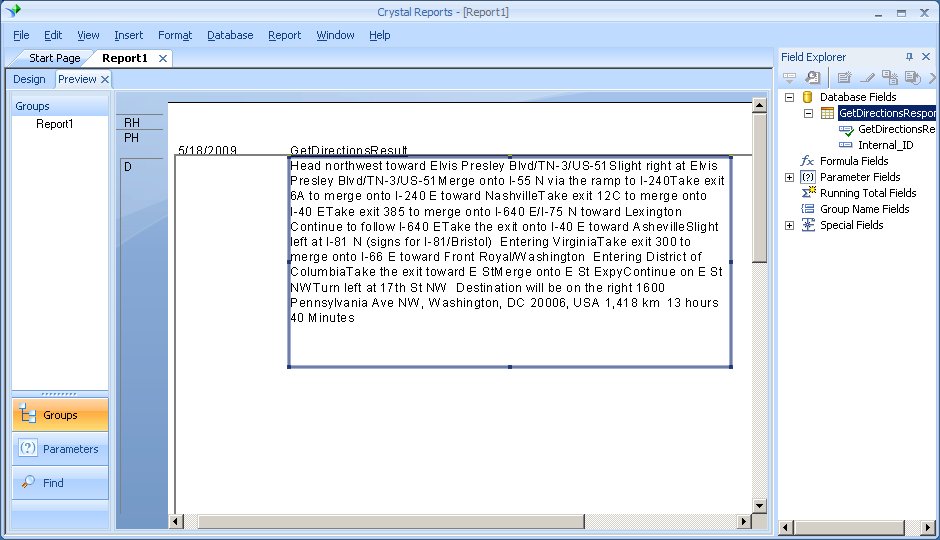
- Once the fields are added to the report, you should the directs Elvis would need to take to drive to the White House.
Here is your finished report:
Leveraging Web Services from within SAP BusinessObjects couldn’t be easier. If you are interested in seeing the same types of capabilities from within other BusinessObjects tools drop me a line and I’ll add it to the list. Enjoy.
«Good BI»
Hi David Taylor’s,
Good job man. Go ahead and discover new things. All the BEST.
Thanks
David, Thanks for this walkthru. I get all the way through the steps but in the last step to view the report I get an error:
Cannot determine the queries necessary to get data for this report. Details: Cannot access web service. System.WebServices.Protocols.SoapException: Server was unable to process request, —> System.NullReferenceException: Object reference nto set to an instance of an object….(theres more.)
Any Ideas?
This is great !
Please post one for BO webi/deski report or even from the univese.
Thanks
Okay Suma thanks for the suggestion. I can definitely do that. We can connect to Web Services via a Universe as well. For BusinessObjects XIr2, we created a new extension to the Universe called a “data feed as a universe”. There are more details here: https://www.sdn.sap.com/irj/boc/innovation-center?rid=/webcontent/uuid/50c178ec-15f2-2b10-65be-85fd40d6c001
Now that we have Data Federator, you can also use that to connect to a web service. Then the Universe can talk to Data Federator via the JDBC/ODBC bridge.
Hi David,
Thank you for put this tutorial available on the net;-)
I have been trying to use webservice as data source for CrystalReports XI. I am able to go all the way till have it displayed as a database field and am able to see all the fields listed and drag-drag to my report template design view. But failed to preview it. I get this error:
———8<———
Cannot determine the queries necessary to get data for this report.
Details: Cannot access web service
———8<———
Could you please advise what might be the problem?
ps. I'm not able to connect to the http://www.ecubicle.net/driving.asmx, although I have no problem retrive the WSDL file from my browser.
Thanks in advance
Hi,
I’m really in a big trouble with webservices.
I am trying to use a web service ( created in Visual Studio 2008 and throwing DataSet object by its web-methods ) , but CR 2008 is only recognizing INTERNAL_ID and not recognizing other fields which is also thrown by that webservice.
I’ve hosted that webservice on this link :
http://www.binarymyth.com/s/service.asmx
for WSDL : http://www.binarymyth.com/s/service.asmx?wsdl
Can you check out that or give some samples of WEB SERVICES written in VS 2008 and perfectly compatible with CR 2008. I’m in urgent need.
Sorry links are :
http://www.binarymyth.com/s/service1.asmx
and WSDL : http://www.binarymyth.com/s/service1.asmx?wsdl
Really good one.
Can we return the data as XML string from a web service and publish onto report with multiple columns?
Thanks.
-Thiru
I also had problems running the sample, getting the “Cannot determine the queries necessary to get data for this report.” I finally figured out the problem. You must enter the from and to address in the following format:
Street Address, City/Province, State, Zip, Country(optional) ==>
419 Fulton Street, Peoria, Illinois, 61602, United States
Please note the data is returned in a field called, GetDirectionsResults, as a HTML formatted text, so you may want to set the text interpretation to HTML to view the directions without the HTML Tags
Yes. You can either parse out the text yourself by creating formulas OR you can create a UFL (User Function Library) call to an external XML parser. The UFL would have two parameters, the value you were searching for and the XML String. The return value would be the string value associated with the tag you requested. Here is an non-XML example of a UFL from SDN: http://www.sdn.sap.com/irj/boc/index?rid=/library/uuid/604d2394-0a0f-2c10-9aa5-d5a3dc31c529
I have been trying to use webservice as data source for CrystalReports XI.
could you please advise steps to load webservice
Ex, http://www.binarymyth.com/s/service1.asmx
I want to consume a REST based webservice to populate crystal report.
There is no WSDL file, only a webservice URL and some input parameters to it and HTTP method ( GET or POST). Output of the webservice is in JSON format which can be easily converted to XML format. How do i begin reporting? Suggestions would be appreciated.
Hi David:
I created a crystal reports which consumes a web services and all works fine, but when i deployed that to the BOE and then run it from infoview it prompts me a logon for credentials. What do i need to configure un CMC for not asking me for credencials?
Hi Pibe17. Where you able to resolve the issue regarding setting up a CR using WS to view on InfoView?
hi,
I’have created a SOAP webservice using SAP PI 7.0 and the crystal report able to process the WSDL file. The WSDL file required few input and i manage to do it by manually key in the input. what i’m looking for is it possible for crystal report to pass the parameter in run time (programmatically). tq.
Hi David,
I tried SAP WSDL as a datasource for Crystal report 2008 and it is not populating the method,port and service so I want to know if this ever worked for you when consumed any SAP WSDL. I also want to know if its possible to avoid SAP logon for credentials when users run this report.
Nilesh
hi nilesh,
i had the same problem. the solution for me was that the respone didn’t have the requiried html-headers. i do not remember concretly. try thees:
User-Agent: XMLBeans/2.1.0-r330131 (org.apache.xmlbeans)
Accept: application/xml, text/xml, */*
Host: 10.0.6.167:8081
Connection: keep-alive
User-Agent: Java/1.5.0_17
Host: 10.0.6.167:8081
Accept: text/html, image/gif, image/jpeg, *; q=.2, */*; q=.2
Connection: keep-alive
temir
Is it possible to consume data from a REST Web service to create a crystal report. Any pointers will be greatly appreciated.
@SKK
Would like to use rest webservice to create a report. Is this possible?
Good afternoon,
When I create the web service, as it should create my method so that it can be consumable by the crystal report on the web? and the report would be necessary enbeber crystal in the IDE to display it anywhere ?.
I thank you in advance for the answer
hi sir
i am using web services and i want to create crystal report i make a store procedure and make a function in the services but when i call that fucntion it doesnit call i update all the services but does not works
if you have any solution please advice me
advance thanks……………….